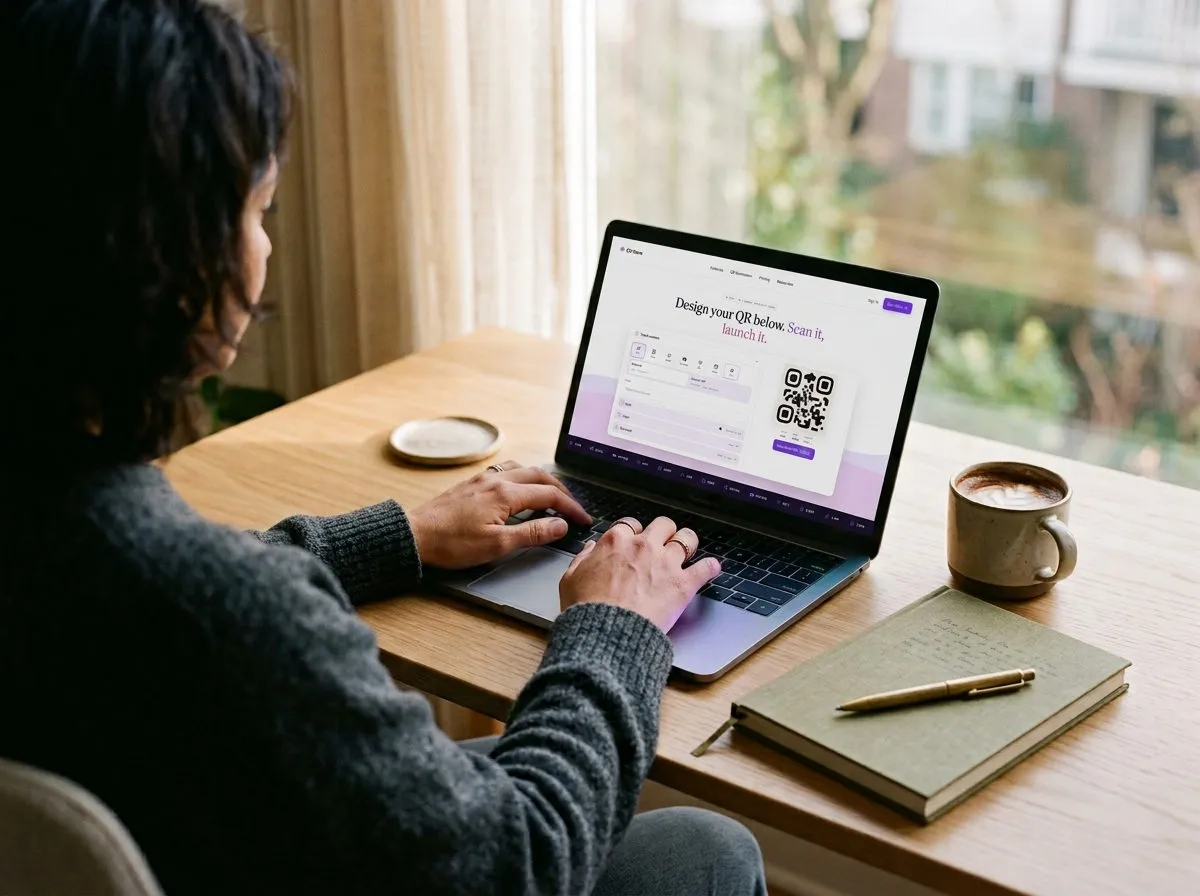
Step 1: Choose static or dynamic
Before you generate anything, decide whether you need a static or dynamic QR code. Here's the quick rule:
- Static if the link will never change and you don't need scan data (e.g., your portfolio URL on a personal card).
- Dynamic if you might update the destination, want to track scans, or you're printing in bulk. This is the right choice 90% of the time for business use.
Still on the fence? The full trade-off is covered in static vs dynamic QR codes.
Step 2: Pick your QR code type
Most generators offer several types: URL, vCard, WiFi, PDF, and more. For your first code, URL is the simplest. Just paste the web address you want people to land on.
Step 3: Enter your content
For a URL code, paste the full link including https://. Double-check for typos — a broken link is the fastest way to waste a print run.
For other types, fill in the relevant fields: name and phone for vCard, network name and password for WiFi, and so on.
Step 4: Customize the design
A QR code doesn't have to be a black-and-white blob. Modern generators let you:
- Change module shapes (square, rounded, dots)
- Adjust eye/finder patterns (rounded, leaf, circle)
- Set foreground and background colors
- Add your logo in the center
- Apply gradients that match your brand palette
The key constraint: maintain enough contrast between the foreground and background for scanners to read it reliably. Dark on light works best. Avoid light-on-light or low-contrast combos.
Step 5: Test before you print
This step is non-negotiable. Test your QR code:
- On at least two different phones (iOS and Android)
- From the distance people will actually scan it (arm's length for a flyer, 3+ feet for a poster)
- In the lighting conditions where it'll be displayed
- After printing a test copy — screens and paper render differently
Step 6: Download and place
Download as SVG for print (infinitely scalable, no pixelation) or PNG for digital use (email, social, web). Place it in your design file with enough quiet zone (white border) around it — at least 4 modules wide.
That's the whole process — six steps, about two minutes.